Keyboard Layout Emulation Preferences
This extension exposes several preferences in the Preferences > Keymap panel.
To reveal them, press the preferences icon in the top right corner.
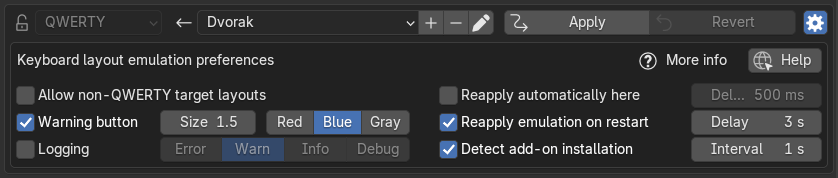
The default settings have been tuned so that most users should not ever need to change them.
Emulation settings
Reapply emulation on restart
By default, emulation is reapplied every time you restart Blender. This ensures that even keyboard shortcuts added by other add-ons are reliably remapped.
The extension tracks the shortcuts it remaps to avoid remapping any shortcut twice
By default, this is done twice, once as soon as Blender loads, and a second time a few seconds later, to ensure that we remap even keyboard shortcuts added in after our add-on is registered. You may configure this delay or set it to 0 to only reapply emulation only once on restart.
Detect add-on installation
By default, whenever you install or enable another add-on, we detect it and automatically apply the emulation to ensure that its keyboard shortcuts are also remapped.
Performance
This is done by injecting draw hooks onto the Preferences > Add-ons and
Preferences > Get Extensions panels, which trigger a check for changes
in the list of add-ons that only runs at most every few seconds.
You may configure this polling interval or set it to 0 to check for changes
on every draw event.
This means that the check only runs when either of these menus are open and you interact with them in any way. Unfortunately, this includes when you hover any button in the menus. Nonetheess, the check runs at most once every few seconds, to ensure that the performance impact is negligible, and at least once a few seconds after the last interaction to ensure reliability.
Reapply automatically here
There are some situations where Blender unfortunately resets some
keyboard shortcuts.
For example, some shortcuts, such as node.duplicate_move are
sometimes reset when you modify other keyboard shortcuts.
Info
When this happens, the Apply button in the Preferences > Keymap panel
will be re-enabled to let you Re-Apply the emulation immediately.
This option simply auto-presses the button for you, every time the button would be shown in this state.
By default, this feature is disabled. You may configure the delay before the button is automatically clicked.
Interface settings
Allow non-QWERTY target layouts
By default, the target keyboard layout selector is disabled, since most users will never need to change it.
If you want to use a keymap preset designed for a non-QWERTY keyboard layout, different from the one you use, you can enable this option and change the target keyboard layout.
Warning button
By default, whenever emulation is active, a wide warning button is displayed above the keyboard shortcuts editor, to let you know that you should disable emulation before editing any keyboard shortcuts.
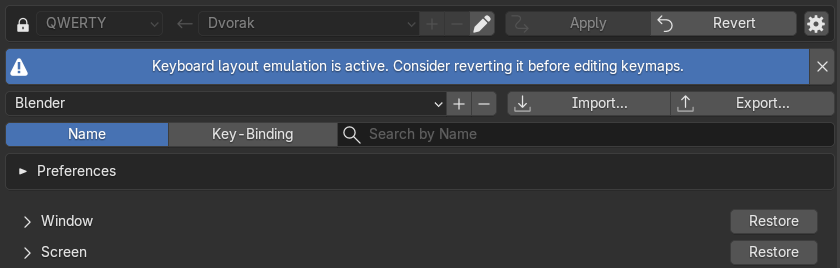
Why show a warning?
Unfortunately, while the extension can track which keyboard shortcuts it has remapped, it cannot reliably track the modifications you make while emulation is active.
Hence, modifying keyboard shortcuts while emulation is active may result in some shortcuts being remapped a second time on the next Blender restart.
You may change the aspect of this warning button to make it easier to bear or harder to miss.
Logging
By default, no logging is done by the add-on. You may enable logging of errors, warnings or debug messages into Blender's System Console if you want to troubleshoot an issue with layout emulation.
Import preferences
You may export and import the preferences for this extension from the
Preferences > Add-ons menu.
Search for Keyboard Layout Emulation and expand the preferences for this extension.
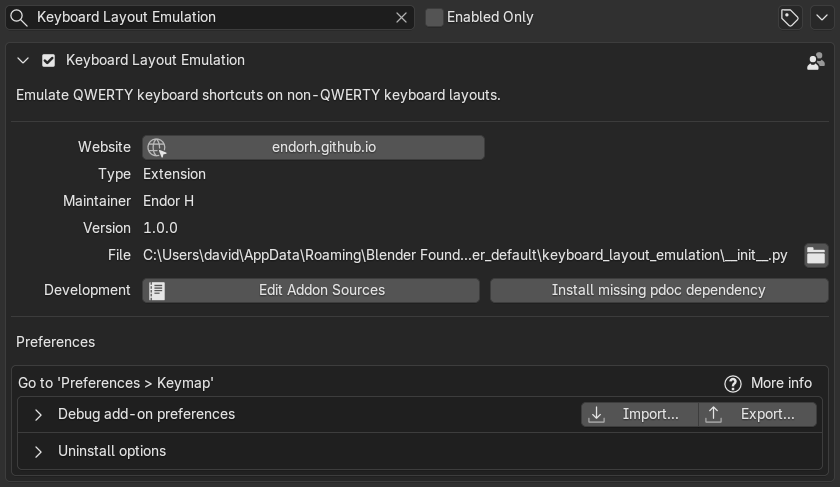
Use the Import... and Export... buttons in the Debug add-on preferences section.
Uninstall options
By default, whenever you uninstall this extension, the emulation is automatically reverted to avoid damaging your keymaps.

Only disable this option if you want to uninstall the extension without reverting the applied emulation
The Uninstall options can be found in the Preferences > Add-ons menu.
Search for Keyboard Layout Emulation and expand the preferences for the extension.